
From Prompt to Pitch Deck: Solving the "Blank Canvas" Problem with Gemini 3
We’ve all been there. You have a brilliant idea for a product launch, a quarterly review, or a technical concept. You open a new slide deck, and you are greeted by the most intimidating sight in the corporate world: the white, blank slide.
The friction between having an idea and visualizing it in a presentation format is often where productivity dies. Formatting text boxes, hunting for stock images, and aligning headers takes more time than the actual thinking.
Enter Gemini 3 Canvas. With its latest update, Google has transformed its AI workspace from a text-based assistant into a full-fledged presentation designer. It doesn't just write the outline; it builds the deck.
Here is a walkthrough of how this new workflow changes the game, using a fictional product launch for "Nano Banana Pro" as our test case.
Step 1: The Brief
The magic starts in the Canvas interface. Unlike a standard chat window, Canvas is designed for iteration. You don't need a perfect prompt; you just need a clear intent.
For this test, I asked Gemini to create a slide deck for "Nano Banana Pro," a fictional creative AI model designed for mobile devices. I gave it a loose structure: introduction, key features, and market impact.
Gemini 3 didn't just spit back a bulleted list. It immediately recognized the request as a presentation task and began structuring a multi-slide narrative on the right side of the screen.
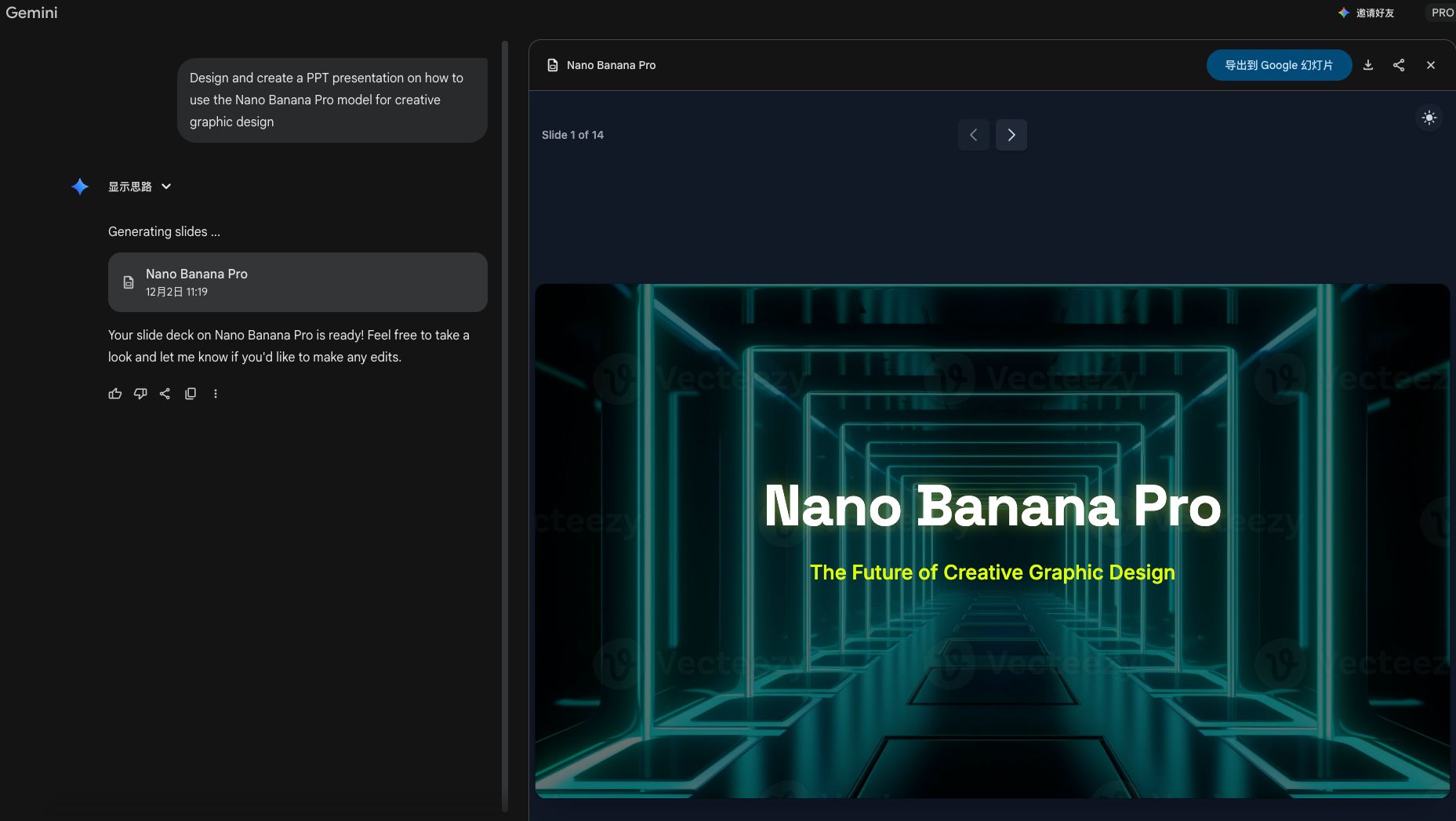
Step 2: The Draft (Visuals Included)
Within seconds, the AI generated a complete 14-slide deck.
What stands out here is the contextual awareness. Because the topic was "Nano Banana Pro" (implying a high-tech, futuristic product), Gemini automatically selected a sleek, dark-mode theme with neon accents.
It didn't just leave placeholders for images; it generated relevant 3D-style assets—robotic figures and abstract tech spheres—to match the "creative AI" vibe. The layout varies from slide to slide, using two-column splits for comparisons and bold headers for impact statements like "Unmatched Brand Consistency."
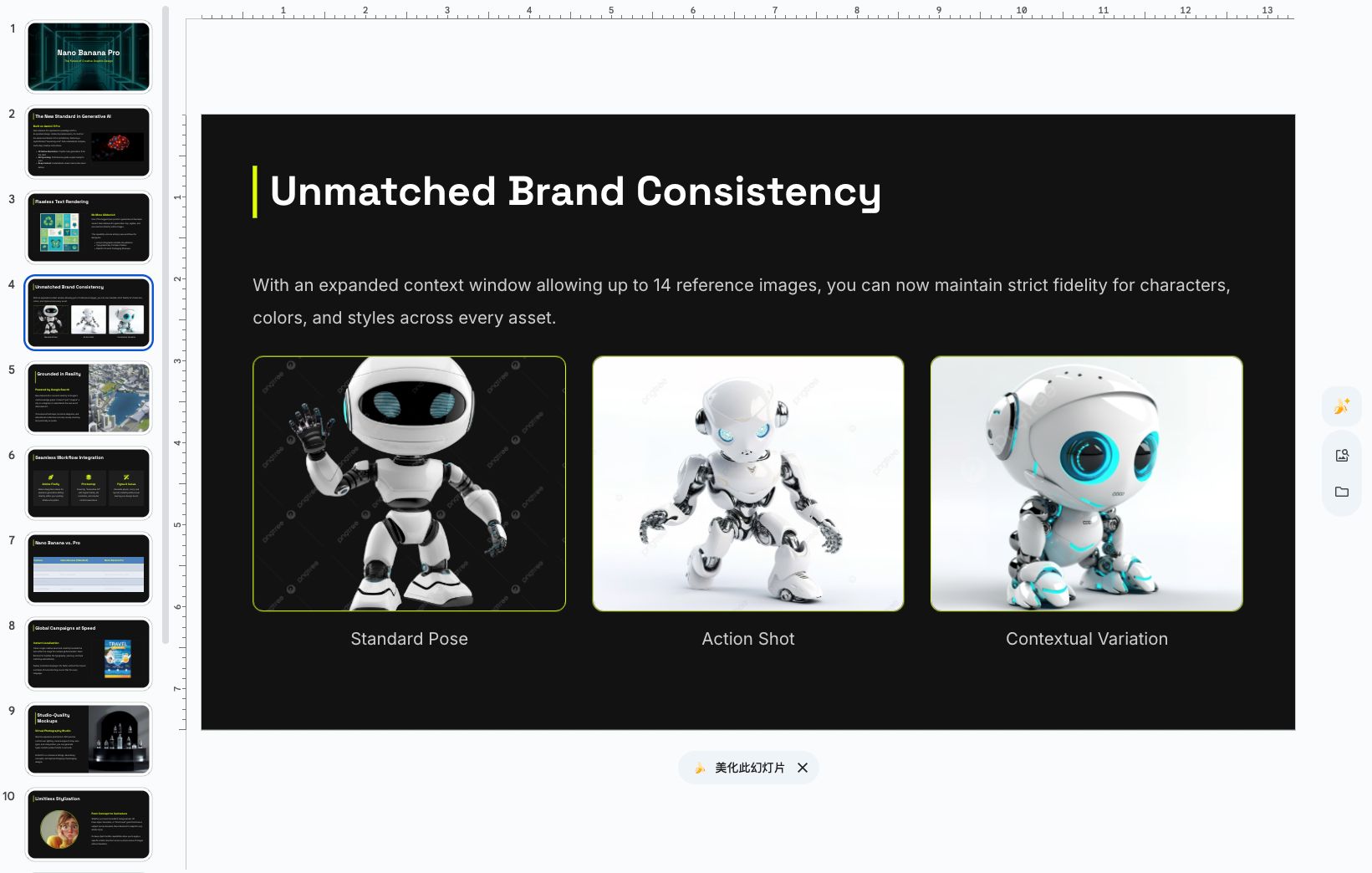
Step 3: The Handoff (Native Editability)
This is the feature that separates Gemini 3 from many other "AI Presentation" tools.
Usually, AI tools export slides as flat images or PDFs, making them impossible to edit without recreating them. Gemini, however, offers a simple button: "Open in Slides."
When you click this, the deck opens in Google Slides, and every element is a native object.
- The text "Grounded in Reality" is a text box you can rewrite.
- The robot image is a standalone element you can resize or replace.
- The background shapes are vector objects.
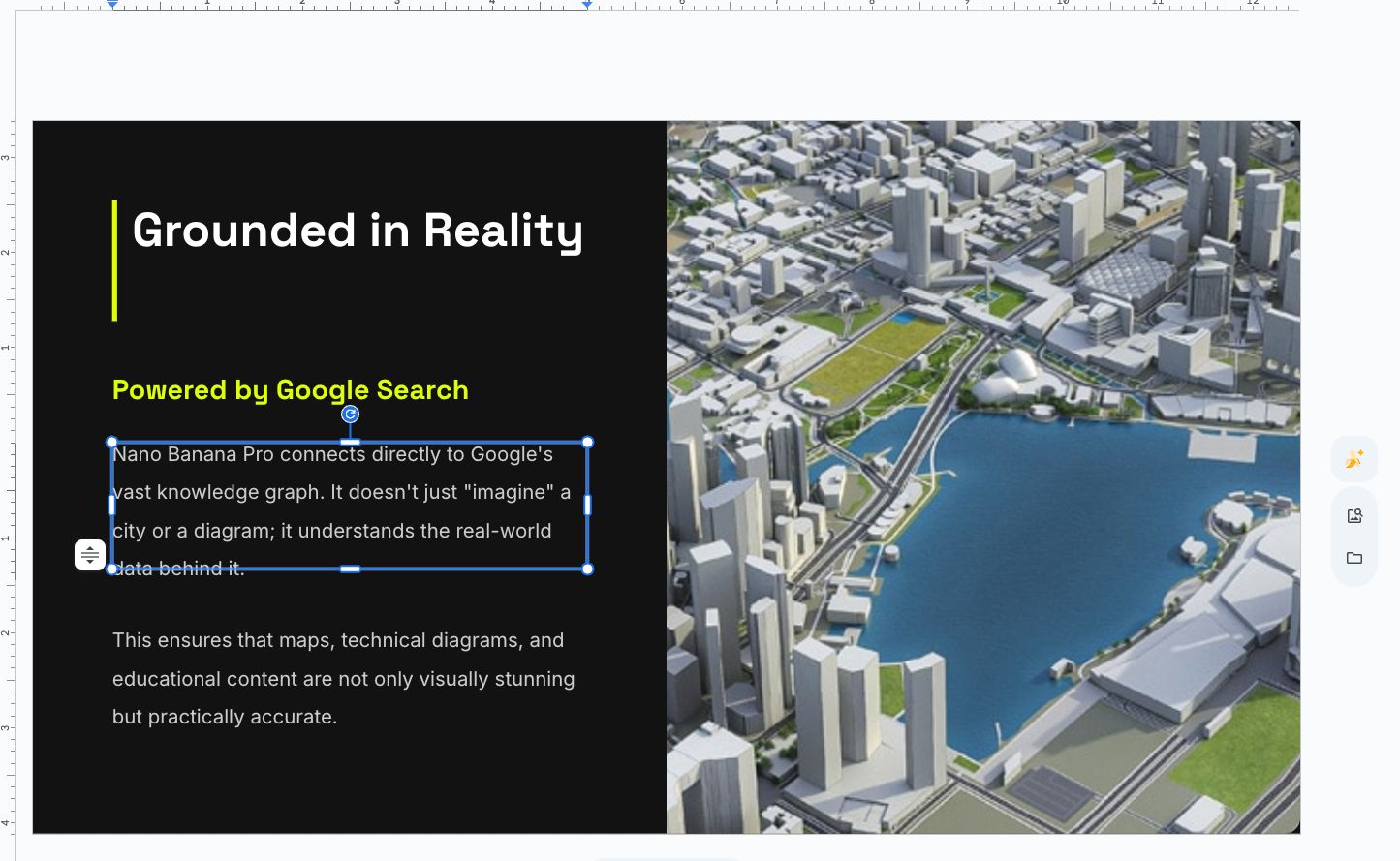
This means you can take the AI's 80% draft and apply your specific brand fonts, tweak the copy, or add your own data charts. And for those living in the Microsoft ecosystem, you can simply go to File > Download > Microsoft PowerPoint (.pptx) to continue working in PowerPoint.
Why This Matters
The value proposition here isn't that AI designs better than a human designer. The value is velocity.
Gemini 3 Canvas eliminates the "Zero to One" phase. Instead of staring at a blank screen for 30 minutes wondering where to put the title, you are instantly transported to the editing phase. You become an editor and art director rather than a slide formatter.
Whether you are pitching a startup idea, summarizing a PDF report, or launching the next "Nano Banana Pro," this workflow turns a morning of grunt work into a 5-minute review task.
Ready to try it? If you have access to Gemini Advanced, simply open Canvas and type: "Create a presentation about..."